If you're building with Supabase, you already have a powerful PostgreSQL database with authentication, real-time subscriptions, and Row Level Security built in. So do you really need a separate CMS on top of that?
The short answer: probably yes, once your team grows beyond just developers. Supabase Studio is designed for developers performing database operations. It's not built for content editors, support staff, or managers who need to view and update data without writing SQL. A purpose-built CMS layer bridges that gap, letting your whole team work with data safely and independently.
A Supabase CMS is an admin interface that sits on top of your Supabase database, uses your existing Postgres schema, and provides role-based permissions so non-developers can safely manage content. If you've already decided you need one, Supamode is ours.
Examples assume Supabase 2.x and supabase-js 2.x as of January 2026.
 Click to expand
Quick Decision Rules
Use a Supabase CMS when:
- Non-developers need to edit data weekly or more
- You need audit trails for support or compliance
- Multiple teams manage different tables or workflows
- You're handing off a project to clients without SQL skills
Skip a Supabase CMS when:
- You're a solo developer and edits are rare
- All content changes happen inside your product UI
- Your entire team is comfortable with SQL
Not sure? Start with Studio, but plan for a CMS when your first non-developer asks for data access.
The Developer Bottleneck Problem
Here's a pattern I've seen repeatedly after working with thousands of developers building SaaS products with MakerKit:
- Developer builds a Supabase-powered app
- App launches, users sign up, content needs updating
- Content editor asks developer: "Can you update this blog post?"
- Developer drops what they're doing to run an UPDATE query
- Support staff asks: "Can you check this user's subscription status?"
- Developer runs another query
- Repeat until developer is spending hours on data requests
This bottleneck hurts everyone. Developers lose focus on building features. Non-technical team members wait for simple data access. The business moves slower than it should.
Supabase Studio doesn't solve this because it requires SQL knowledge and exposes the full database infrastructure. You wouldn't give your content editor access to run arbitrary queries on production.
Supabase Studio vs. a CMS
Supabase Studio is excellent for database administration, schema changes, and SQL exploration. A CMS is designed for content workflows and safe team access.
| Capability | Supabase Studio | Supabase CMS |
|---|---|---|
| Primary user | Developers | Content, support, ops |
| SQL required | Yes | No |
| Access model | Full admin access | Scoped roles and permissions |
| Permission model | Full database access | Granular RBAC per table/action |
| Editing UX | Tables and SQL | Forms, rich editors, relations |
| Relationship navigation | Manual queries | Clickable links |
| Audit trail | Database logs only | App-level audit logs |
| Custom dashboards | No | Yes |
The distinction matters: Studio is for building and maintaining the database. A CMS is for working with the data inside it. Treat Studio as an admin console and don't give it to non-technical staff.
When You Don't Need a CMS
Not every Supabase project needs a separate CMS. You can skip it if:
- You're a solo developer managing everything yourself. Studio works fine when you're the only one touching the database.
- Your data is fully user-managed through your app's UI. If users create, edit, and delete their own content through your frontend, there's no admin interface needed.
- You have a small technical team where everyone knows SQL. If your content editor is comfortable with SQL, they can probably handle Studio.
- Your data rarely changes after initial setup. Static configuration data that's set once and forgotten doesn't need a fancy editing interface.
If any of these stop being true, revisit the decision.
When You Definitely Need a CMS
The CMS becomes essential when:
- Non-technical team members need data access. The moment your content writer, support agent, or operations manager needs to view or edit data, they need an interface designed for them.
- You're building a content-heavy application. Blogs, documentation sites, e-commerce catalogs, and any app with frequently updated content needs a proper editing workflow.
- Multiple people manage different data types. When your support team handles user issues while your marketing team manages blog posts, you need role-based access that Studio doesn't provide.
- You need audit trails. Knowing who changed what and when matters for compliance, debugging, and accountability. Studio doesn't track this at the application level.
- You're building for clients. If you're an agency delivering Supabase projects, your clients need an interface they can use after handoff.
Common CMS Selection Mistakes
Avoid these pitfalls when choosing a Supabase CMS:
- Giving editors Studio access instead of a scoped CMS. Studio is full admin access. Treat it that way.
- Choosing tools that require schema duplication. Some solutions make you define your content models separately from your database schema. This creates sync issues and maintenance overhead.
- Giving full database access instead of scoped permissions. Just because someone needs to edit blog posts doesn't mean they should see billing data. Look for table-level and action-level permissions.
- Skipping audit logs until a production incident happens. You'll wish you had them.
- Picking SaaS when self-hosting is required. Data residency, compliance, and customization needs often require self-hosted solutions.
What to Look for in a Supabase CMS
Schema-First UI
The CMS should adapt to your database, not the other way around. You've already designed your tables and relationships. A good CMS reads your schema and generates appropriate interfaces automatically.
Avoid solutions that require you to define your content models twice or maintain parallel configurations.
Granular Role-Based Access Control
Your CMS needs application-level permissions. Who can access the admin panel at all? Which tables can the marketing team see? Can support staff delete records or only view them?
Look for role-based access control (RBAC) that lets you define rules like "Support can view users but not edit billing" or "Editors can modify posts but not delete them."
 Click to expand
Relationship Navigation
Foreign keys should feel like links, not IDs. Your CMS should let editors jump from a post to an author, or from a user to their subscriptions, without writing SQL.
 Click to expand
Content Editing That Matches Your Data
If you store Markdown or HTML, editors need a rich editor, not a raw text field. If you store structured data, forms should validate it.
 Click to expand
Audit Logs
You need to know who changed what and when. Application-level audit logs make this fast and trustworthy.
 Click to expand
Self-Hosting and Data Residency
If your data must stay in your infrastructure, choose a self-hosted CMS. Hosted tools often add another database and another compliance surface.
How Supamode Solves This
We built Supamode specifically to solve the CMS problem for Supabase projects. It reads your existing schema and adds granular RBAC for your team.
Disclosure: MakerKit sells Supamode. If you prefer hosted alternatives, consider Contentful, Sanity, or Strapi. The tradeoff with hosted CMS products is a second data store and more sync work.
Data Explorer Without SQL
Browse any table with filtering, sorting, and full-text search. Click on foreign keys to navigate relationships. Edit records through generated forms that validate against your column types and constraints.
Your content team searches for a blog post by title, clicks to edit, updates the content in a rich text editor, and saves. No SQL involved.
Role-Based Access Control
Create roles like "Content Editor", "Support Agent", or "Operations Manager". Assign permissions at the table level: read-only access to users, full access to blog posts, no access to billing data.
Each role defines exactly what tables users can see and what actions they can perform (read, create, update, delete).
Relationship Views
When you open a record, related data appears inline. A user record shows their posts, comments, and orders in embedded tables. You can create and remove relationships without navigating away.
 Click to expand
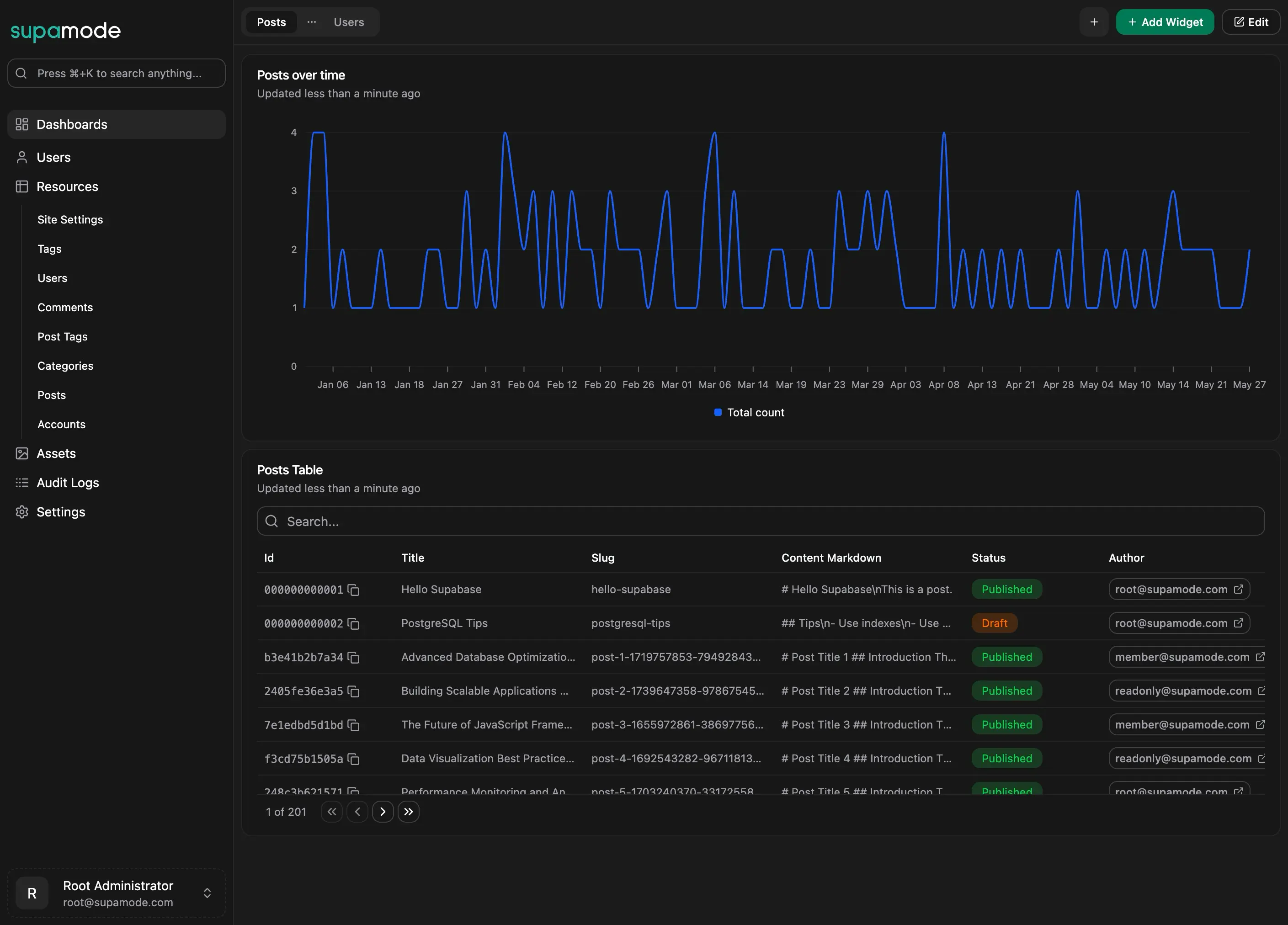
Custom Dashboards
Build dashboards with chart widgets, metric widgets, and table widgets. Track KPIs, monitor content publication rates, or create operations views. Share dashboards with specific roles.
 Click to expand
Self-Hosted Ownership
Deploy on Vercel, Railway, Docker, or your own infrastructure. You own the source code with a lifetime license. Customize the UI, add features, white-label it for clients.
No monthly per-user fees. No data leaving your infrastructure.
Setting Up Supamode
Getting started takes about 15 minutes. Here's the core setup:
-- Sync your tables into Supamode (run in Supabase SQL Editor)SELECT supamode.sync_managed_tables('public');The full process:
- Clone the repository with your license
- Run the schema generation pointing to your Supabase project
- Sync your tables with the SQL command above
- Configure permissions for your team roles
- Invite your team and assign roles
For a detailed walkthrough, see building a production Supabase blog with Supamode.
Recommendations
If you're unsure, this is a safe default:
- Start with Supabase Studio for schema work
- Add a CMS the moment non-developers need access
- Keep all content in Supabase unless you have a strong reason not to
- Verify the CMS has granular RBAC before giving it to your team
Try the Supamode demo to see how it works with a real Supabase database.
Frequently Asked Questions
Can I use Supabase Studio as a CMS?
How does Supamode differ from Directus or other generic admin panels?
What's the difference between a CMS and an admin panel?
Should I use a headless CMS like Contentful with Supabase?
How do I give support staff safe access to user data?
Is Supamode self-hosted or a SaaS?
Can I white-label Supamode for clients?
Next Steps
- Get Supamode: Self-hosted CMS and admin panel for Supabase
- Supamode Documentation: Complete feature and configuration reference
- Build a Supabase blog with Supamode: Full tutorial from schema to CMS
- Custom Dashboards in Supamode: Create operational dashboards for your data
- Try the demo: Explore Supamode with a live Supabase database